
Articles
What happens to data in a browser-based tool?
A practical guide to following a utility input through requests, storage and exports.
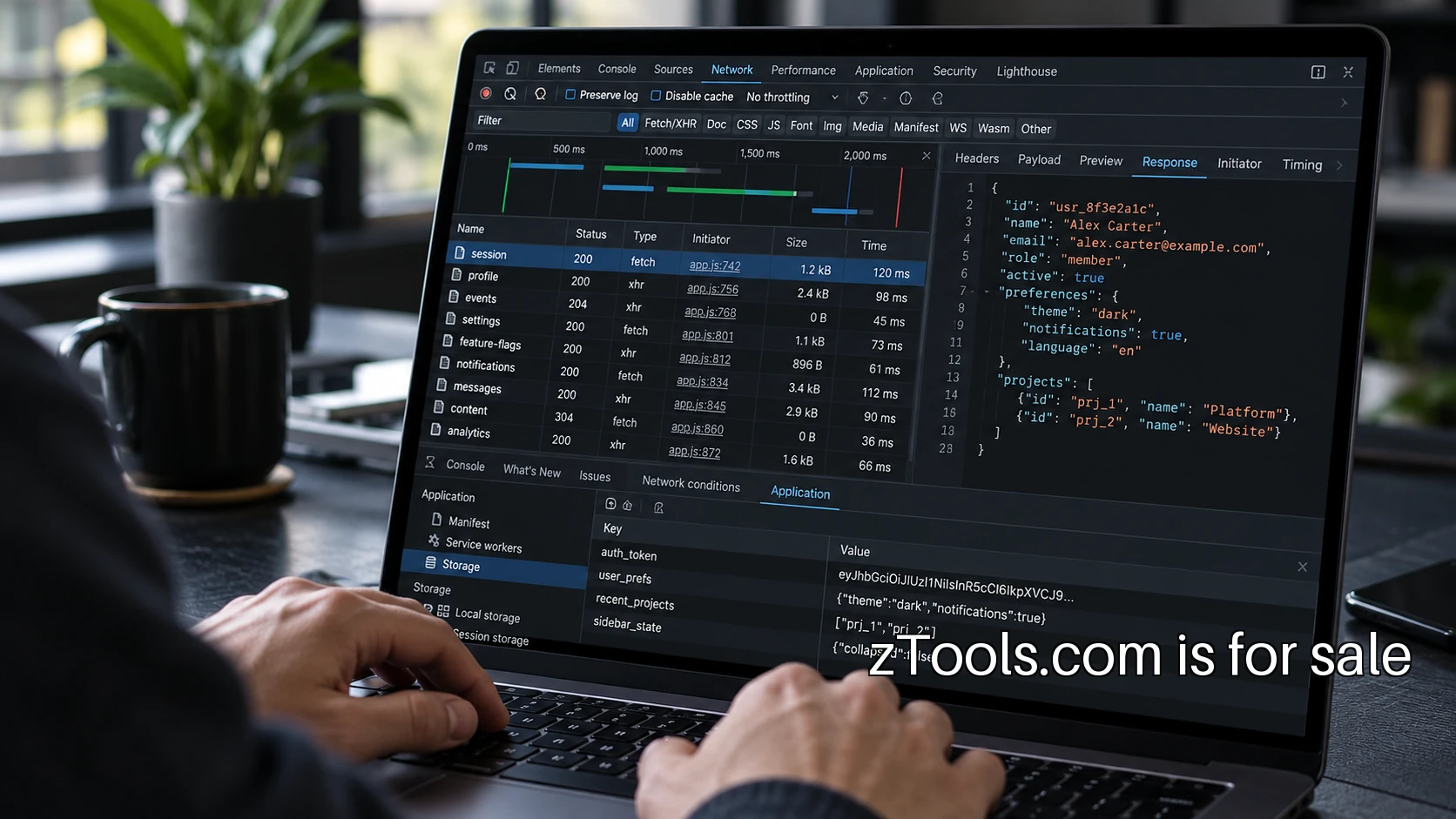
A browser interface does not tell the whole story
A text box on a web page can process information in the browser, send it to a server, store it on the device or combine all three. The page's appearance does not establish which path it takes. If you are evaluating a utility for your own work, the useful question is specific: what did this page do with this input during this test?
Start with synthetic data. A made-up JSON object, an invented contact name and a recognizable test phrase are enough to follow a request without exposing real information. Keep the phrase unique so it is easy to search for in the evidence. Write down the page address, the date, the browser and the action you performed. Those details make the result repeatable.
The example in this article is illustrative. Imagine testing a JSON formatter with a payload containing the phrase “sample-blue-window-42.” You want to know whether formatting that payload triggers a request containing the phrase, whether the page stores it and whether it appears in an exported file. Each is a separate observation, so record them separately.
Open the Network panel before the action
Browser developer tools provide a useful first view of requests. Open the Network panel before loading the page or performing the task you want to inspect. Chrome's Network panel overview explains the interface for recording and examining requests. Learn the basic controls before using the result to judge a utility.
Load the page and distinguish its initial resources from requests triggered by your input. A stylesheet, font or image request is not evidence that the text you entered was sent. Conversely, a page can look unchanged while a script makes an HTTP request. MDN's Fetch API overview describes one mechanism scripts use to communicate with servers.
Enter the synthetic payload and perform one action. Look at newly recorded requests, their destinations and the request details the browser exposes. Search for the unique phrase where the interface supports it. If the utility offers several actions, such as format, save and share, test each independently. They may follow different data paths even though they sit beside one another.
Write down what you actually observed
A useful record says that a particular action produced a request to a particular destination and that the visible payload contained the synthetic phrase. It does not jump from that observation to a claim about every action the product can perform. Record whether you were signed in and which options were enabled, because those conditions may change behavior.
If no matching request appears, describe the test conditions and the limits. The browser view can show what happened in the observed session; it cannot prove what a remote server does after receiving a request. It also does not establish how another version of the application behaves. Keep the observation narrow enough that someone else can repeat it.
Pay attention to errors. Try malformed input and cancel an action if the interface allows it. Error reporting may follow a different path from successful processing. A utility owner should know whether an error event includes a full input, a small excerpt or only a general error category. The same review should cover any analytics events associated with buttons and form fields.
Inspect storage as a separate path
Network activity is only part of the picture. A page may keep information on the device so it can restore a draft after a refresh. MDN's Web Storage documentation describes localStorage and sessionStorage. Developer tools generally provide a way to inspect these stores for the page's origin.
Check the storage view before entering the sample, after processing it and after a reload. Note which keys appeared and whether their values contain the phrase. If the application has a clear-history control, test it and inspect the result. Do not assume that clearing the visible text box also removes a saved copy.
Other storage mechanisms may be relevant to the application. Use the browser's storage inventory to see what is present rather than treating two named APIs as a complete audit. A saved setting and a stored document have different implications. Record the purpose the interface describes, then compare it with the state you can observe.
Follow downloads and shared links
A utility may generate a file without sending the input to a server, or it may request a generated file from a remote service. Test the download action while the Network panel is recording. Open the resulting file with the same care you would give any exported document. Check for the expected content and for extra information that the interface did not make obvious.
Shared links deserve their own test. Does the URL contain the input directly, a reference to stored content or only display settings? Copy it into a separate test context using synthetic material. Look at what the recipient can see and what the sender can revoke. A share feature creates a different use case from a local formatting action, so evaluate it on its own terms.
Do not paste a sensitive generated URL into an unrelated service to inspect it. For a real review, keep the evidence within the authorized environment and use synthetic content wherever possible. The point of a test fixture is that it lets you follow the mechanism without creating a new exposure during the investigation.
Compare the behavior with the explanation
Read the utility's privacy and retention explanations alongside the observations. Look for clear distinctions between processing, saving, analytics and error reports. A statement about one of those paths does not automatically describe the others. If an explanation is unclear, formulate a precise question: does this specific action send the entered text, and if so, what is retained?
For a product owner, this comparison can become a release checklist. Use the same synthetic fixture after changing analytics, adding a hosted feature or upgrading error reporting. Keep the result with the version being tested. A claim that was accurate for an earlier build needs fresh evidence when the relevant behavior changes.
The user interface can help too. Give local processing, saved history and remote sharing distinct labels. Show a meaningful explanation where a person makes the choice. A single broad badge is less useful than an accurate sentence next to the action that changes the data path.
Finish with a small test record
A practical record contains the task, synthetic input marker, observed requests, observed storage, export behavior and unanswered questions. Add the browser and version context, then state the result in ordinary language. For example: formatting the sample produced no observed request containing the marker, while choosing Save created a new request containing it. That sentence preserves the difference between two actions.
The next step is to run this process on one utility you already use. Keep the evidence small and repeatable. If you cannot answer an important question from the browser, ask the operator for the missing detail rather than turning an incomplete observation into a broad assurance. The result should help you choose which data and tasks belong in the tool.
Discuss zTools.com
Describe the software business you have in mind, or ask PremiumBrands for help pursuing another name.
Discuss Purchase